On your local VS Code installation, install the Remote - SSH extension. After installing it, switch to the pre-release version.
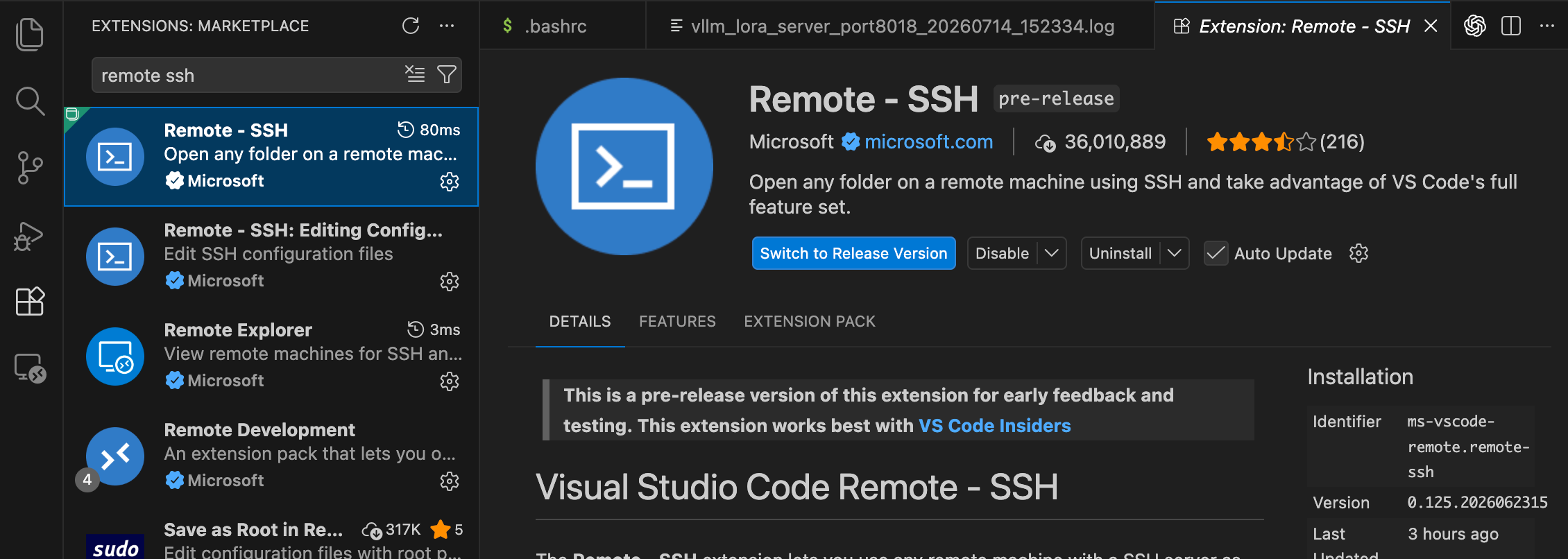
Use VS Code to connect to the target machine through Remote - SSH.
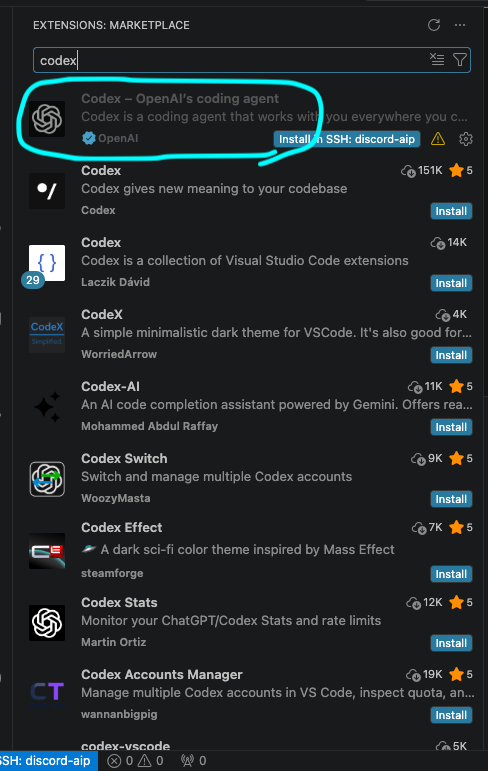
After connecting, install the Codex extension in the remote VS Code session. You must install it separately on every remote machine where you plan to use Codex.
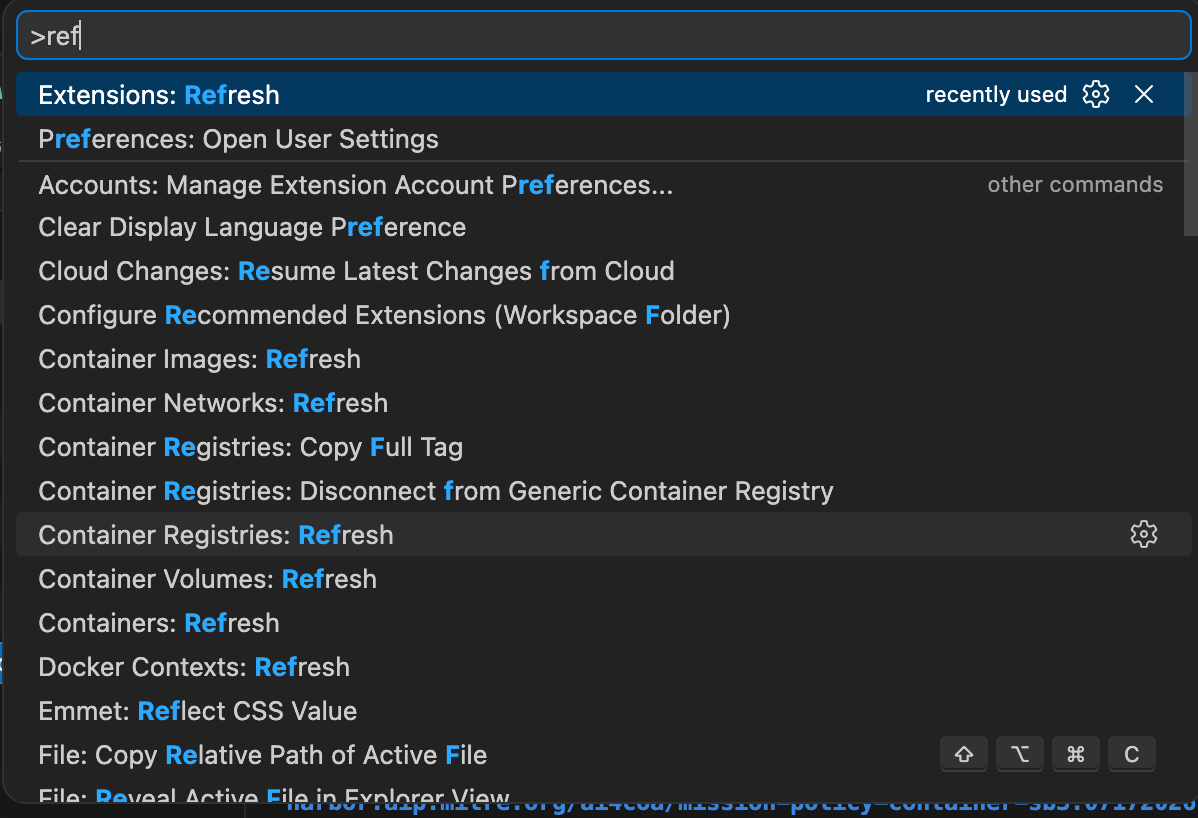
On the remote machine, open the Command Palette with Ctrl+Shift+P, then refresh the extensions.
Restart VS Code.
On the remote machine, select the Codex icon in the right-side Activity Bar to open the Codex panel. You should see something like this:
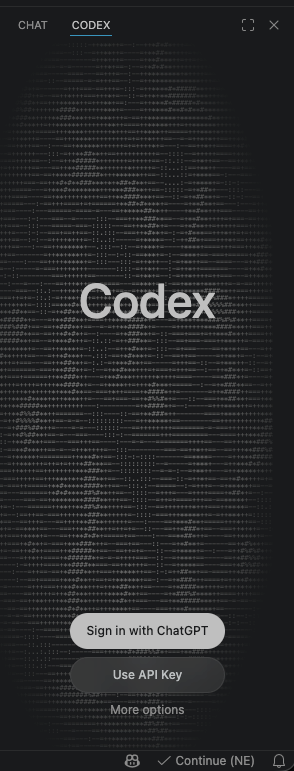
Choose Sign in with ChatGPT. A browser window will open so you can complete ChatGPT authentication.
After authentication, make sure a project is open in the Explorer panel. Then test Codex connectivity by asking it: Tell me a joke.
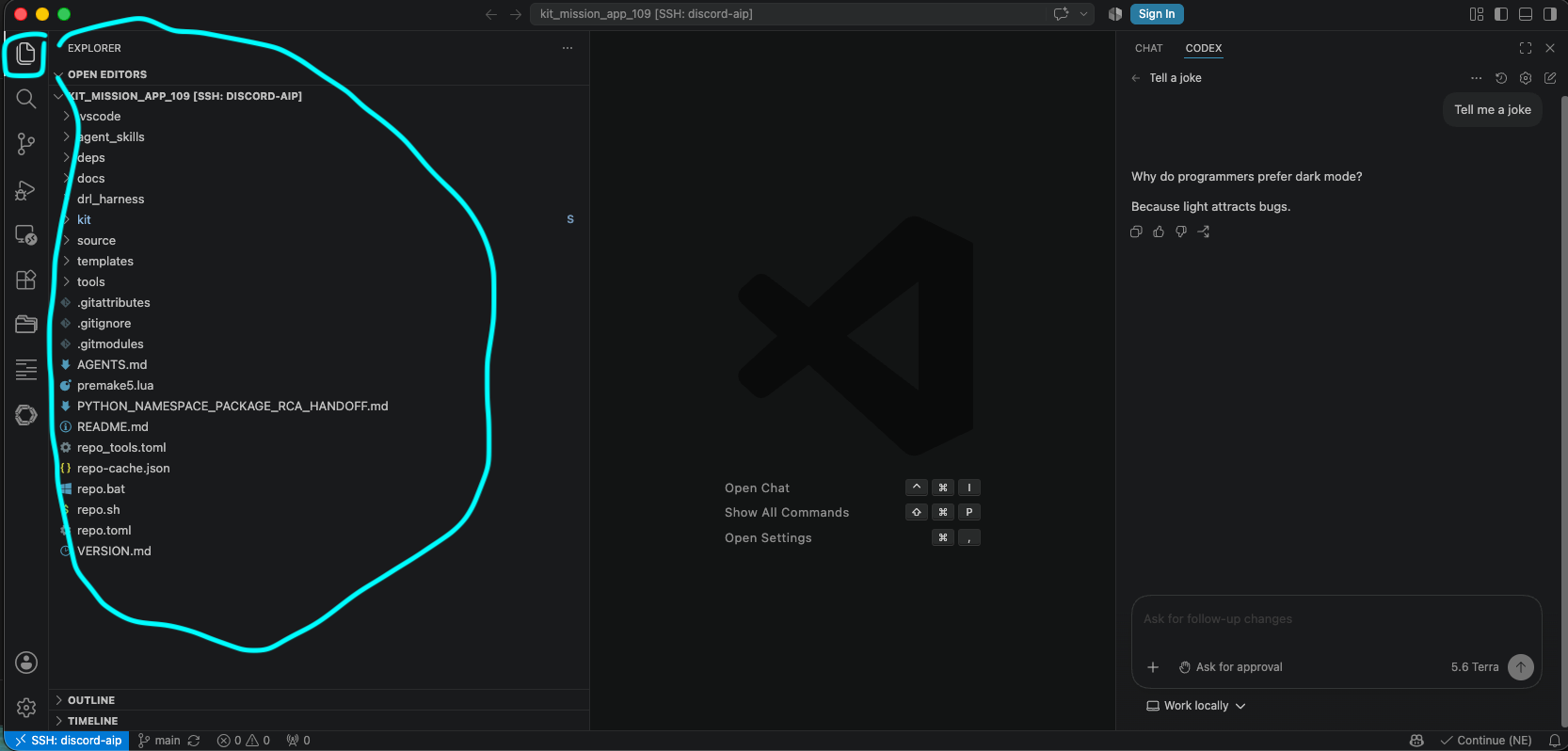
Congrats! Codex is now configured on your remote machine!
Troubleshooting
If you have trouble signing in with ChatGPT, see this Medium article: This VS Code Codex authentication is so stupid.