Finding Large Files with ncdu
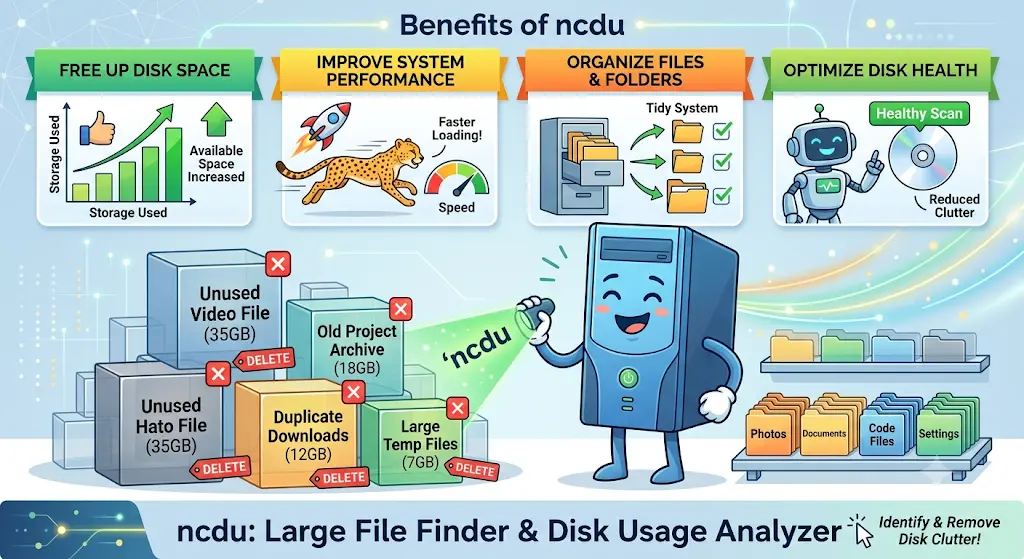
When a disk suddenly fills up, du can tell you where the space went—but its
output is often a long list that is hard to explore. ncdu (NCurses Disk Usage)
is a small terminal-based alternative that turns that search into an interactive
browser. It scans a directory, sorts folders and files by size, and lets you
drill down with the keyboard.
Because it uses the ncurses text interface, ncdu works comfortably over SSH
and on machines without a graphical desktop. It is one of those practical tools
that is worth having installed before a disk-space emergency.
Install ncdu
On Debian or Ubuntu systems, install it with:
sudo apt install ncdu
On macOS with Homebrew:
brew install ncdu
Other Linux distributions normally provide it through their standard package manager.
Scan the right place
Start by scanning the directory most likely to contain the problem. For example, to inspect your home directory:
ncdu ~
To investigate an application data directory, point ncdu directly at it:
sudo ncdu /var
Avoid beginning with sudo ncdu / unless you really need a whole-machine view.
It can take a while, may encounter mounted filesystems you did not intend to
scan, and makes it easier to wander into important system files.
Navigate the results
After the scan finishes, the largest entries appear first. Use the arrow keys
to move, Enter or the right arrow to open a directory, and the left arrow to
go back. The displayed size makes it quick to distinguish a genuinely large
directory from one that merely contains many small files.
Useful keys include:
g— rescan the current directory.n— sort by name instead of size.s— sort by size.d— delete the selected file or directory.q— quit.
The d key is especially convenient when the item is clearly disposable, such
as an old download, a build artifact, or an application cache. ncdu asks for
confirmation, but deletion is still real: review the path carefully and make
sure it is not needed before confirming. For anything important, move or back
up the data first instead of deleting it from the disk-usage screen.
A fast cleanup workflow
My usual workflow is to scan the narrowest likely directory first, open the
largest entry, and keep drilling down until I find a specific file or cache that
explains the usage. Then I either remove it with d, or quit and use a more
intentional command if the cleanup needs scripting or a retention policy.
ncdu does not replace backups or careful operational cleanup, but it is an
excellent first tool for answering the urgent question: what is using all the
disk space? Its interactive ncurses interface makes that answer much easier to
find than scrolling through raw disk-usage output.