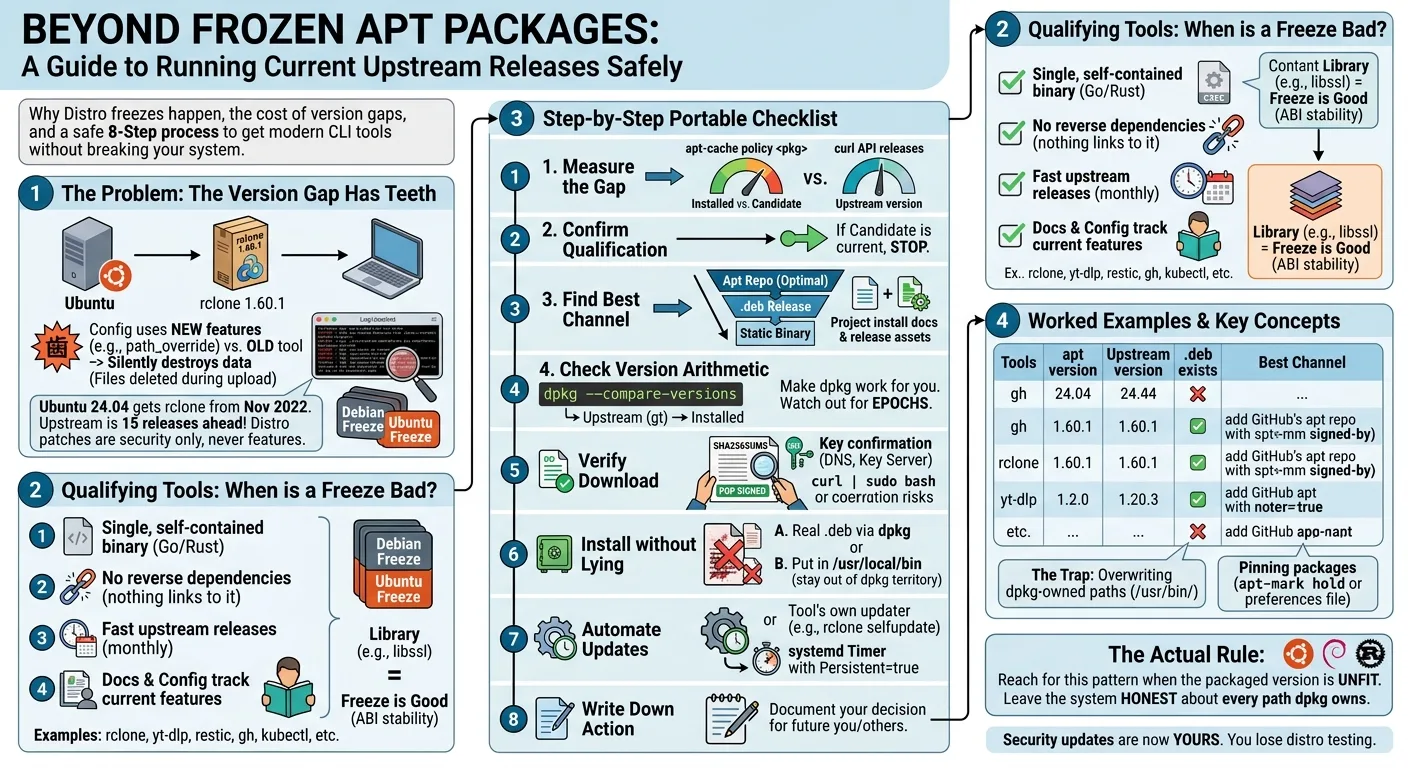
TL;DR — getting current rclone on Ubuntu
Ubuntu 24.04 ships rclone 1.60.1, released November 2022, and will never
offer anything newer. Upstream is 1.75.2. rclone publishes its own .deb
under the same package name, so install it straight over the apt one:
cd "$(mktemp -d)"
curl -fLO https://downloads.rclone.org/rclone-current-linux-amd64.deb
sudo dpkg -i rclone-current-linux-amd64.deb
rclone version
That is the whole install. No apt remove first, no apt-mark hold, no apt
pinning. The upstream package is called rclone just like Ubuntu’s and
carries a higher version, so dpkg handles it as an ordinary upgrade and apt —
which never downgrades on its own — leaves it alone from then on.
For future releases, let rclone update itself:
sudo rclone selfupdate --package deb
--package deb keeps the install dpkg-managed rather than swapping the bare
binary, and selfupdate verifies the download’s hash and signature against a
key compiled into the binary. Put it on a weekly systemd timer with
Persistent=true and you are done — the unit files are under Step 6 below.
What not to do
Do not use curl https://rclone.org/install.sh | sudo bash on a system
where rclone came from apt. It overwrites /usr/bin/rclone, a path dpkg owns,
without telling dpkg — so the package database still believes 1.60.1 is
installed, and the next Ubuntu security update to that package silently reverts
you. That is Step 3 below, and it is the part worth reading even if you skip
everything else.
The rest of this article is why each of those steps is what it is, and how to run the same pattern against any other tool apt has frozen.
The version gap has teeth
A backup sync started deleting the files it had just uploaded.
The log looked like corruption:
ERROR : README: Failed to calculate dst hash: failed to calculate md5 hash:
        failed to run "md5sum @/volume1/README": No such file or directory
ERROR : README: corrupted on transfer: md5 hash differ "ec43eb36..." vs ""
INFO  : README: Removing failed copy
It was not corruption. The rclone config used path_override = @/volume1, where
a leading @ means “treat this as the SFTP root and append the relative subpath
yourself.” That syntax landed upstream in commit 982f76b on 2023-07-30 and
shipped in rclone v1.64.0. The machine was running 1.60.1, because that
is what apt install rclone gives you on Ubuntu 24.04. An older rclone does not
reject the @ — it passes it through as a literal path component, gets an empty
hash back, concludes the upload is corrupt, and deletes it.
So the config was correct, the command was correct, and the tool was three and a half years and fifteen releases behind what the config was written for. Every newly transferred file was uploaded and then destroyed. Files already on the remote matched on size and modification time, so they were skipped without a hash check and survived — which is exactly why the destination looked mostly fine.
That is the real cost of the version gap: not a missing feature you notice, but a silently wrong behaviour you don’t.
The fix for one tool is easy. The question worth answering once is the general one: how do you run upstream’s current release without spending the next two years fighting your package manager over it? That is what the rest of this covers.
apt is old on purpose, and the staleness compounds
The distro is not neglecting your tool. It froze it, deliberately, and the freeze is the product.
Read the version string Ubuntu 24.04 gives you for rclone:
1.60.1+dfsg-3ubuntu0.24.04.6
│      │    │ │
│      │    │ └─ Ubuntu's 6th security/SRU update to that same upstream code
│      │    └── Debian revision 3
│      └────── repacked to strip non-DFSG-free files: a Debian source package
└──────────── upstream version, released November 2022
Two separate freezes stack up here. Ubuntu imports most of its archive from
Debian and then freezes at its own release date — April 2024 for 24.04. But
Debian had already frozen that package: rclone 1.60.1+dfsg-2 is what shipped
in Debian bookworm. So Ubuntu 24.04 inherited a November 2022 upstream release,
and the six Ubuntu updates since then are backported security and bug fixes to
that same 1.60.1 code, never feature bumps. That is the SRU policy working as
designed.
It gets better. Debian trixie — the current Debian stable — still carries
1.60.1+dfsg-4. Only Debian sid has moved on, to 1.69.3+dfsg-3. Upstream is
at 1.75.2.
Why this is the right call, until it isn’t
For a library, freezing is obviously correct. libssl has thousands of reverse
dependencies; a feature bump mid-release would break ABI compatibility across
the archive, and the distro’s job is to backport the security fix without moving
anything else. You want that discipline.
The calculus inverts for a specific class of tool:
- A single self-contained binary, usually statically linked Go or Rust, with no library role
- No reverse dependencies — nothing else in the archive links against it or shells out to it
- A fast upstream release cadence, monthly or faster, where bug fixes land upstream far sooner than any distro backports them
- Config and documentation that track upstream, so the manual you are reading describes features your binary does not have
rclone is all four. So are yt-dlp, restic, ripgrep, fd, gh, kubectl,
terraform, and most of the modern CLI ecosystem. For these, the distro’s
freeze buys you nothing — there is no ABI to protect and no dependents to
coordinate — while costing you years of fixes.
That is the category this pattern is for. Everything below assumes you have checked your tool against those four points.
Step 1: Measure the gap before you act on it
Two commands tell you whether there is a problem worth solving.
What apt can offer you:
apt-cache policy rclone
rclone:
  Installed: 1.60.1+dfsg-3ubuntu0.24.04.6
  Candidate: 1.60.1+dfsg-3ubuntu0.24.04.6
  Version table:
 *** 1.60.1+dfsg-3ubuntu0.24.04.6 500
Read Candidate as the verdict. Candidate equal to Installed means apt
has nothing newer and never will for this release — you are not behind on
updates, you are at the ceiling. No amount of apt update && apt upgrade moves
this. If Candidate were higher, you would just upgrade and stop reading.
What upstream has:
curl -s https://api.github.com/repos/rclone/rclone/releases/latest \
  | grep -oE '"(tag_name|published_at)": "[^"]+'
"tag_name": "v1.75.2
"published_at": "2026-10-09T11:03:19Z
No API token needed for public repos, though unauthenticated calls are rate-limited to 60 per hour per IP.
Read the suffixes — they tell you who built your binary
rclone version on the Ubuntu package prints something revealing:
rclone v1.60.1-DEV
That -DEV is not upstream’s version. Debian builds rclone from source without
the release metadata upstream injects at build time, so the binary cannot
identify itself properly. It even breaks rclone’s own update check:
yours:  1.60.1-DEV
latest: 1.75.2  (released 2026-10-09)
Your version is compiled from git so comparisons may be wrong.
Two suffixes worth recognising on sight:
| Suffix | Where it comes from | What it tells you |
|---|---|---|
+dfsg | Debian repacked the source to remove files failing the Debian Free Software Guidelines | A Debian source package, inherited by Ubuntu |
-DEV, ~git, +git | Built outside upstream’s release process | Version self-reporting and self-update may misbehave |
-Nubuntu0.XX.YY.Z | Ubuntu SRU revision on frozen upstream code | Security backports only; upstream version is pinned |
If you see any of these, you are running a distro build, and the version number alone understates how far behind you are.
Step 2: Pick the channel that keeps apt in charge
Upstream usually offers more than one way in, and they are not equivalent. Rank them by a single criterion: after today, who is responsible for noticing the next release?
Does upstream run its own apt repository?
├── yes → add the repo (scoped with signed-by)
│         apt keeps doing its job; nothing else to build
└── no  → Does the release page ship a .deb?
          ├── yes → dpkg -i the .deb, same package name
          │         apt's version arithmetic protects you (Step 4)
          └── no  → Does the tool have a self-update subcommand?
                    ├── yes → static binary in /usr/local/bin
                    │         + its own updater on a timer (Step 6)
                    └── no  → container image, or a notify-only timer
                              and a manual update when it fires
Work down the questions and take the first yes. Each step down moves responsibility from the package manager to you, which is why you want to stop as early as the project allows.
Finding out which one you get
Three places, about two minutes:
- The project’s install documentation. An official apt repo will be
advertised there, usually as a
curlof a keyring into/usr/share/keyringsplus a line in/etc/apt/sources.list.d/. If the docs offer only a shell installer, read it before running it — Step 3 is about what those scripts quietly do. - The release asset list. This is the authoritative answer on
.debavailability, and it takes one command:
curl -s https://api.github.com/repos/<owner>/<repo>/releases/latest \
  | python3 -c "import sys,json; [print(a['name']) for a in json.load(sys.stdin)['assets']]"
- The tool’s own
--help. Look for aselfupdate,self-update, or-Usubcommand. If one exists, Step 6 gets much simpler.
One caution on the apt-repo tier: you are adding a third-party repository with
its own signing key, and by default that key is trusted for everything it signs.
Scope it to one repository with signed-by, as the example later in this
article does. An unscoped key in /etc/apt/trusted.gpg.d/ can authenticate a
package of any name — including replacements for ones you get from Ubuntu.
Step 3: The trap — never overwrite a path dpkg owns
This is the part that bites people months later, and it is the whole reason this article exists.
rclone’s official installer is the first thing its docs offer you:
curl https://rclone.org/install.sh | sudo bash
Read what it actually does on Linux before you run it:
cp rclone /usr/bin/rclone.new
chmod 755 /usr/bin/rclone.new
chown root:root /usr/bin/rclone.new
mv /usr/bin/rclone.new /usr/bin/rclone
It writes to /usr/bin/rclone. And /usr/bin/rclone belongs to dpkg:
$ dpkg -S /usr/bin/rclone
rclone: /usr/bin/rclone
What breaks
The file on disk is now 1.75.2. The dpkg database still records 1.60.1 as installed, because nothing told it otherwise. You have created a desync between the filesystem and the package database, and dpkg considers itself the authority on that path.
The consequence is not immediate, which is what makes it dangerous. It fires the
next time anything causes the rclone package to be reinstalled or updated — an
Ubuntu SRU security update, an apt install --reinstall, a dependency repair, a
--fix-broken run. dpkg restores its version of /usr/bin/rclone, you are
silently back on 1.60.1, and nothing in the apt output looks like a downgrade,
because from apt’s point of view nothing happened at all.
Now re-read the opening of this article. That is a backup pipeline quietly reverting to the exact version that deletes files instead of uploading them, at an unpredictable future date, with no error anyone would connect to the cause.
Detecting it
dpkg records a checksum for every file it installs, so it can tell you when a file has been replaced underneath it:
$ dpkg -V rclone
Silence and exit status 0 means every file matches the package. After an
installer has overwritten the binary, that command reports the mismatched path.
It is worth running across your whole system once — bare dpkg -V checks every
installed package — if you have been installing things with shell pipes for a
while.
The two correct moves
Either tell dpkg about it, by installing a real .deb so the package
database holds the true version:
sudo apt remove rclone
sudo dpkg -i rclone-v1.75.2-linux-amd64.deb
Or stay out of dpkg’s territory entirely, by installing to /usr/local/bin:
$ dpkg -S /usr/local
dpkg-query: no path found matching pattern /usr/local
Nothing in the archive owns anything under /usr/local — that is precisely what
the FHS reserves it for, and apt will never touch a file you put there. On a
default Debian or Ubuntu PATH, /usr/local/bin also comes before
/usr/bin, so your binary wins without removing the packaged one:
/usr/local/sbin:/usr/local/bin:/usr/sbin:/usr/bin:/sbin:/bin
That shadowing is convenient but worth being deliberate about: sudo and
systemd units often use a different PATH, and cron uses a famously minimal
one. If you shadow rather than replace, use absolute paths in anything
automated, or you will end up with scripts silently running the old binary.
What you must not do is leave a third state — a file dpkg owns, holding content dpkg did not put there.
Step 4: Make dpkg’s version arithmetic work for you
If you install upstream’s .deb, apt and your binary now have opinions about
the same package name. Whether they fight depends entirely on how dpkg sorts the
two version strings — and dpkg’s sort order is not plain string comparison or
semver.
Run the comparison before you install anything:
$ dpkg --compare-versions "1.75.2" gt "1.60.1+dfsg-3ubuntu0.24.04.6" \
    && echo "upstream wins" || echo "DANGER: distro version sorts higher"
upstream wins
That command is the single most useful thing in this article to carry to other tools. It exits 0 or 1 and tells you, authoritatively, which version dpkg thinks is newer.
Why “upstream wins” is the outcome you want
apt never downgrades on its own. Given an installed version that sorts
higher than its candidate, apt upgrade leaves the package alone and reports
nothing to do. So once upstream’s 1.75.2 is registered in the dpkg database,
Ubuntu’s 1.60.1 is no longer a threat — not because you blocked it, but because
apt genuinely has nothing newer to offer. The version ordering does the work for
you, permanently, with no configuration.
This is the structural advantage of the .deb route over the
overwrite-a-binary route. One leaves apt correctly informed and quiet; the other
leaves it misinformed and liable to act.
The epoch edge case
Sometimes the check above fails, and the reason is almost always an epoch.
An epoch is the N: prefix in a version string. It exists exactly for the case
where upstream’s numbering changed in a way that breaks dpkg’s sort order, and a
maintainer needed to force a version to sort higher. Epochs are common:
$ dpkg-query -W -f='${Package} ${Version}\n' | grep -E ' [0-9]+:'
attr 1:2.5.2-1ubuntu0.1
bash-completion 1:2.11-8
bind9-dnsutils 1:9.18.39-0ubuntu0.24.04.8
An epoch beats everything to its right, unconditionally:
$ dpkg --compare-versions "9.99.0" gt "1:2.5.2-1ubuntu0.1" && echo yes || echo no
no
Upstream 9.99.0 sorts below a distro package at epoch 1, no matter how much
larger the numbers look. If your tool is in this situation, installing
upstream’s .deb gives you a package apt considers outdated, and the next apt upgrade will cheerfully “upgrade” you back to the distro version.
Two tools also sort in surprising ways without any epoch: a version with a letter suffix, and date-based schemes where upstream drops leading zeros between releases. Always run the actual comparison rather than eyeballing it.
When you need to pin
If the epoch check goes against you, or you simply want a guarantee that does not depend on arithmetic, hold the package:
sudo apt-mark hold rclone
apt-mark hold is the simple instrument: apt refuses to change that package at
all. The cost is that it also blocks any update you would have wanted, and
apt upgrade will mention held packages in a line most people stop reading.
Check your holds periodically:
apt-mark showhold
For finer control, pin by origin instead. This says “never take rclone from
the Ubuntu archive, whatever version it claims”:
# /etc/apt/preferences.d/rclone-upstream
Package: rclone
Pin: origin ""
Pin-Priority: -1
A negative priority means never install from that source. origin "" matches
local .deb files and is the idiom for “only what I install by hand.” Verify
any pin took effect with apt-cache policy rclone — the priority column changes
— rather than assuming the file parsed.
For most tools in this category, none of this is necessary. Run dpkg --compare-versions, confirm upstream sorts higher, and let the ordering protect
you.
Step 5: Verify what you downloaded
Leaving apt means leaving the archive’s signing infrastructure. apt verifies every package against a repository key automatically, and you are now opting out of that for one package. Replace it with something rather than nothing.
What the project actually offers
Check the release assets for verification files before assuming they exist:
curl -s https://api.github.com/repos/rclone/rclone/releases/latest \
  | python3 -c "import sys,json; [print(a['name']) for a in json.load(sys.stdin)['assets']]" \
  | grep -iE 'sha|sig|asc'
SHA256SUMS
SHA1SUMS
MD5SUMS
No .asc file, which looks at first glance like checksums without signatures —
the weak case, where the hashes and the files they describe come from the same
host, so anyone who can serve you a bad binary can serve you a matching hash.
Look inside before concluding that:
$ head -3 SHA256SUMS
-----BEGIN PGP SIGNED MESSAGE-----
Hash: SHA1

ad5ca6619b30c08887db92eecc5fae42f2502ef2711cd0418e2ccc5835149d9b  rclone-v1.75.2-aix-ppc64.zip
It is a clearsigned PGP message — signature and hashes in one file. Worth knowing as a general habit: a project may be signing releases without shipping a separate signature file.
Verify the chain, including the key
gpg --keyserver keyserver.ubuntu.com \
    --receive-keys FBF737ECE9F8AB18604BD2AC93935E02FF3B54FA
gpg --verify SHA256SUMS
gpg --output SHA256SUMS.signed --decrypt SHA256SUMS
sha256sum -c --ignore-missing SHA256SUMS.signed
The step people skip is confirming the key itself. A fingerprint published on the same website that served you the binary proves nothing — you need it from a channel an attacker would have to compromise separately. rclone publishes its fingerprint in DNS:
$ dig +short key.rclone.org txt
"FBF737ECE9F8AB18604BD2AC93935E02FF3B54FA"
That matches the key the signature was made with:
gpg: Signature made Fri 09 Oct 2026 06:31:57 AM EDT
gpg:                using DSA key FBF737ECE9F8AB18604BD2AC93935E02FF3B54FA
Website, GitHub, keyservers and DNS all agreeing is a meaningfully stronger claim than any one of them alone.
Be honest about curl | sudo bash
The install script verifies nothing. It downloads a zip over HTTPS and copies the binary into place, and you have handed root to whatever that URL returns at the moment you run it. HTTPS gets you transport integrity and proof you reached the host named in the URL — nothing about whether what you fetched is what the maintainer published.
This is not a reason to never use such installers. It is a reason to know that
“I used the official installer” and “I verified the release” are different
statements, and to prefer a path that checks a signature when the project gives
you one. For rclone, selfupdate is that path: it validates the SHA256 hash and
the signature against a public key compiled into the binary, so the check
happens without you remembering to do it.
Step 6: Automate the updates you just took responsibility for
The moment you leave apt, nothing updates this tool but you. That is the actual cost of this pattern — not the install, the ongoing attention — and the whole point of automating it is that attention is exactly what you will stop paying in four months.
Prefer the tool’s own updater
Many Go and Rust CLIs ship a self-update subcommand. Check first:
$ rclone selfupdate --check
yours:  1.60.1-DEV
latest: 1.75.2            (released 2026-10-09)
beta:   1.76.0-beta.10592.35a03a47e
Its equivalents elsewhere: yt-dlp -U, restic self-update, gh through its
apt repo, rustup update. Worth testing rather than assuming — some distros
compile the updater out of their builds, on the reasonable grounds that a
packaged binary should not rewrite itself. Ubuntu leaves rclone’s intact.
When the tool has one, it is the better mechanism: it knows the project’s own release channels and, as noted above, rclone’s verifies hashes and signatures against a key compiled into the binary.
Use --package deb, not the bare binary swap
sudo rclone selfupdate --package deb
This matters more than it looks. The default swaps only the executable, which
leaves you in the desynced state from Step 3 if the path is dpkg-owned, and
leaves the man page describing a version you are no longer running. --package deb downloads the .deb and installs it through dpkg, so the package database
stays truthful — the same reasoning as the install step, applied to every
subsequent update.
A systemd timer
A service unit:
# /etc/systemd/system/rclone-selfupdate.service
[Unit]
Description=Update rclone to the latest stable release
Wants=network-online.target
After=network-online.target

[Service]
Type=oneshot
ExecStart=/usr/bin/rclone selfupdate --package deb
And its timer:
# /etc/systemd/system/rclone-selfupdate.timer
[Unit]
Description=Weekly rclone update

[Timer]
OnCalendar=Mon 04:00
RandomizedDelaySec=1h
Persistent=true

[Install]
WantedBy=timers.target
sudo systemctl daemon-reload
sudo systemctl enable --now rclone-selfupdate.timer
systemctl list-timers rclone-selfupdate.timer
Three details that are easy to leave out and worth keeping:
Persistent=trueruns a missed timer on next boot. Without it, a machine that is off every Monday at 04:00 never updates, and the timer reports healthy forever.RandomizedDelaySecstaggers the run. Polite to the host, and it stops a fleet from hitting the same endpoint simultaneously.Wants/After=network-online.targetavoids a failure on boot-time runs, which is precisely whenPersistent=truefires.
A systemd timer beats a crontab line here mainly because failures are
inspectable after the fact: systemctl status rclone-selfupdate and journalctl -u rclone-selfupdate show you the last run and its output, where a failed cron
job emails a user nobody reads.
On a critical path, notify instead of applying
For anything load-bearing — and a backup tool is load-bearing — consider whether you want unattended updates at all. Automatic updates trade a known risk for an unknown one: you stop running years-old code, and you start occasionally running code released this week on a tool you depend on.
The middle path is a timer that only tells you:
ExecStart=/usr/bin/rclone selfupdate --check
Pair it with whatever already notifies you. If a backup script posts to a webhook on failure, reuse that function — update notices arriving through the channel you already read beats a new channel you will mute.
If you do apply automatically, schedule it so a bad release surfaces before anything depends on it. A weekly backup at Wednesday 10:00 and updates on Monday at 04:00 leaves two days of ordinary use between the two. Updating an hour before the backup window gives you no such margin.
The portable checklist
Run this against any tool. It takes about five minutes.
- Measure the gap.
apt-cache policy <pkg>for the ceiling; the GitHub releases API for upstream. IfCandidateis already current, stop — you have nothing to do. - Confirm the tool qualifies. Single binary, no reverse dependencies
(
apt-cache rdepends --installed <pkg>), fast upstream cadence. A library fails this test. - Find the best channel upstream offers. Official apt repo, then
.debin releases, then static binary, then container. Check the project’s install docs and the release asset list. - Check the version arithmetic.
dpkg --compare-versions "<upstream>" gt "<installed>". If it fails, you need an epoch-aware plan or a pin. - Verify the download. Look for
SHA256SUMSand signatures, including clearsigned ones; confirm the signing key out of band. - Install without lying to dpkg. A real
.debthrough dpkg, or/usr/local/binwhere dpkg owns nothing. Never overwrite a dpkg-owned path. - Automate updates. The tool’s own updater on a systemd timer with
Persistent=true, or an apt repo that does it for you. - Write down what you did. Six months on, nothing on the box explains why this binary is not the packaged one. A comment in the config or a line in your notes is the difference between a decision and a mystery.
The three channels, with real numbers
Every tool here is in the qualifying category, and each lands on a different tier. Ubuntu 24.04 candidates against upstream, as of 2026-10-18:
| Tool | apt candidate | Upstream | Upstream .deb? | Best channel |
|---|---|---|---|---|
| gh | 2.45.0 | 2.102.0 | yes | Official apt repo |
| rclone | 1.60.1 | 1.75.2 | yes | .deb + selfupdate --package deb |
| ripgrep | 14.1.0 | 15.2.0 | yes | .deb |
| fd | 9.0.0 | 10.5.0 | yes | .deb |
| restic | 0.16.4 | 0.19.1 | no | binary + restic self-update |
| yt-dlp | 2024.04.09 | 2026.08.19 | no | binary + yt-dlp -U |
Two things stand out. gh has an official apt repo, which is the outcome
you always want — add it once and apt resumes doing its job:
curl -fsSL https://cli.github.com/packages/githubcli-archive-keyring.gpg \
  | sudo tee /usr/share/keyrings/githubcli-archive-keyring.gpg > /dev/null
echo "deb [signed-by=/usr/share/keyrings/githubcli-archive-keyring.gpg] \
  https://cli.github.com/packages stable main" \
  | sudo tee /etc/apt/sources.list.d/github-cli.list
sudo apt update && sudo apt install gh
No timer, no holds, no version arithmetic, and apt upgrade keeps it current
forever. Always spend two minutes looking for this before building anything
yourself. Note signed-by scoping the key to one repository — the modern idiom,
and the reason not to copy older guides that pipe keys into apt-key add, which
has been deprecated for years.
And yt-dlp is the extreme case: apt offers April 2024 against an upstream that
ships roughly monthly. For a tool whose entire job is keeping up with changes on
websites it does not control, a two-year-old build is not merely dated, it is
substantially non-functional.
Worked example: yt-dlp, the static-binary tier
No .deb anywhere in the release assets — just yt-dlp, yt-dlp_linux, and
SHA2-256SUMS. So the .deb route is unavailable and Step 6’s second option
applies:
sudo apt remove yt-dlp
sudo curl -fsSL -o /usr/local/bin/yt-dlp \
  https://github.com/yt-dlp/yt-dlp/releases/latest/download/yt-dlp_linux
sudo chmod 755 /usr/local/bin/yt-dlp
yt-dlp --version
/usr/local/bin keeps dpkg out of it, and this tool self-updates in place:
sudo yt-dlp -U
Same shape as rclone, different tier: the apt package comes off, the binary goes somewhere apt does not own, and the tool’s own updater handles the rest on a timer.
One gotcha the table hides: the apt package name and the upstream binary name
often differ. fd ships as fd-find in Ubuntu and installs its binary as
fdfind, while upstream calls it fd. When the names diverge, dpkg’s version
comparison never comes into play at all — the two installs simply coexist, and
which one runs depends on your PATH. Check with which -a <tool> after
installing, not before.
When not to do this
Everything above is a way of taking a package out of your distro’s hands. Each time you do it, you are accepting a maintenance obligation the distro was discharging for you. Sometimes that trade is obviously right. Often it is not.
Do not do this to a library. If apt-cache rdepends --installed returns
anything substantial, stop. The distro’s version is what every other package in
your archive was built and tested against, and replacing it to get a feature you
want is how systems become unbootable. This pattern is for leaf-node binaries
only.
Do not do this where the distro patches matter. Distro maintainers sometimes carry patches for a reason — integration with system paths, AppArmor or SELinux policy, systemd units, init scripts, FHS compliance, a CVE fix upstream has not released yet. Upstream’s build may be newer and still fit your system worse. Check the Debian changelog before assuming the packaged version is purely a stale copy.
Do not do this on a machine you do not maintain. A box someone else patches, or one under configuration management, should not have hand-installed binaries appearing outside the inventory. Put it in the config management instead, where the next person can find it.
Do not do this to be current. “Upstream released something” is not a reason. A concrete need — a feature you use, a bug that affects you, a config syntax your file depends on — is. The gap that opened this article mattered because the config had already been written for the newer syntax; an rclone from 2022 would have been perfectly adequate for a setup written in 2022.
What you are signing up for
Security updates are now yours. When a CVE lands in a tool you pulled out of
apt, no unattended-upgrades run will fix it. The timer helps only if you set one
up and only if it keeps working — check systemctl list-timers occasionally,
because a silently failing timer looks exactly like a tool that has no updates
available.
You also lose the archive’s testing. Ubuntu’s 1.60.1 has been run by a very large number of people on this exact distro. Upstream’s release from last Tuesday has not. For most CLI tools that is a fine trade; for the thing that writes your only off-site backup, it deserves a moment’s thought, and it is a reasonable argument for the notify-only timer over the automatic one.
The actual rule
The distro’s default is correct far more often than the self-hosting corner of the internet implies. Reach for this pattern when a specific, named problem makes the packaged version unfit — and when you do, the thing that matters is not which installer you run. It is that you leave the system in an honest state: dpkg either knows the truth about every path it owns, or owns nothing on that path at all.
Get that right and the rest is a timer.
Sources
Versions and behaviour were checked on Ubuntu 24.04 (amd64) on 2026-10-18.
Package candidates come from apt-cache policy; upstream versions from each
project’s GitHub releases API.
- rclone — install documentation — installation methods, and the absence of an official apt repository
- rclone — SFTP backend —
--sftp-path-overrideand the@prefix syntax - rclone — release signing — clearsigned
SHA256SUMS, key fingerprint, verification commands - rclone —
selfupdate— flags, including--packageand--check - rclone commit 982f76b — “sftp: support dynamic –sftp-path-override”, authored 2023-07-30, first released in v1.64.0
- Debian source package: rclone — versions per Debian suite, showing the inherited freeze
- GitHub CLI apt repository — the official-repo example