Stop Copying Passwords with KeePassXC Auto-Type
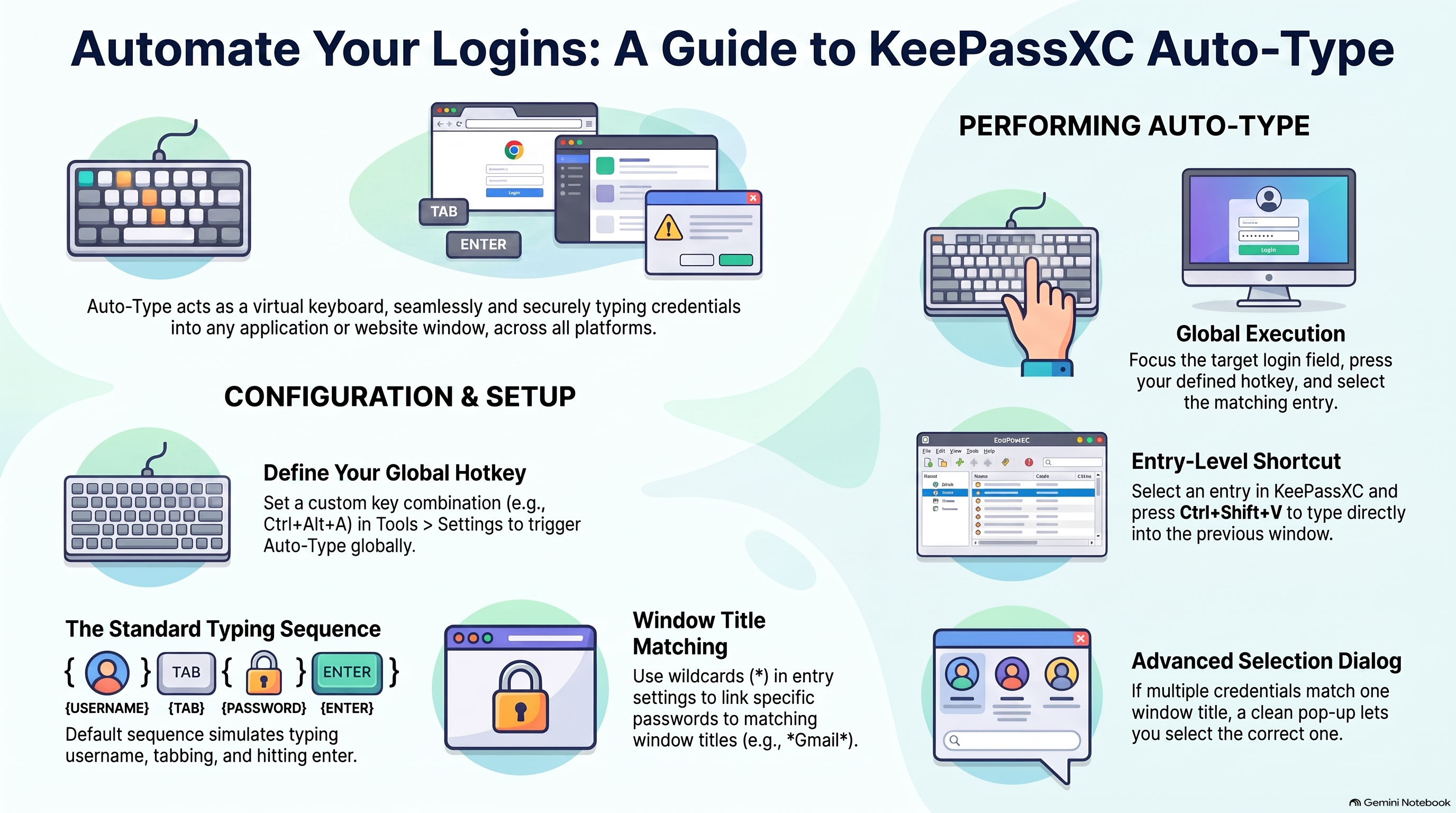
Typing passwords by hand is slow, and copying them to the clipboard makes it easy to paste into the wrong place. KeePassXC has a better option for common logins: Auto-Type. It acts like a virtual keyboard, typing fields from an unlocked entry into the window that currently has focus. It works independently of the browser extension.
This is a convenience feature for accounts you access frequently. It is not a reason to reuse passwords—each account should still have its own unique credential.
Set a global shortcut
Open Tools → Settings → Auto-Type, select the Global Auto-Type shortcut
box, and press a memorable shortcut that does not conflict with another
application. On macOS, KeePassXC’s Ctrl shortcuts use Command (⌘) instead.
The same settings page lets you add start and inter-key delays. Those delays are useful when a particular site or application cannot keep up with the normal typing sequence.
With the target login window focused, press the shortcut. KeePassXC searches unlocked databases for entries whose Auto-Type window association matches that window’s title. If several entries match—or if Always ask before performing Auto-Type is enabled—choose the intended entry before KeePassXC types it.
Type only the password
The usual Auto-Type sequence is:
{USERNAME}{TAB}{PASSWORD}{ENTER}
That is right for a typical sign-in page. Some prompts, however, already know the username and ask only for the password. In that case, create a password-only association for the entry:
Edit the relevant KeePassXC entry.
Select Auto-Type in the left sidebar.
Click + and choose or enter the target window title.
Enable Use specific sequence for this association.
Set the sequence to:
{PASSWORD}
Now the global shortcut enters only that entry’s password when the matching window has focus.
Use entry-level Auto-Type
When you already know the correct entry, select it and invoke Entry-Level
Auto-Type from the toolbar or context menu. On macOS, the shortcut is
⌘⇧V. KeePassXC minimizes and sends the entry’s default sequence to the window
that was focused previously.
This is a good one-off option when you do not need a reusable window-title association.
Treat focus as a security check
Auto-Type sends keystrokes to whichever window is active. Before triggering it,
make sure the password field—not a chat, email, or terminal—has focus. Keep
window-title associations precise, and avoid a broad * wildcard unless you
genuinely intend the entry to match every window.
For sensitive credentials, leave Always ask before performing Auto-Type enabled. That brief confirmation keeps a quick login from becoming an accidental password disclosure.
Learn more
KeePassXC’s Auto-Type user guide covers global shortcuts, window associations, and custom sequences in more detail.