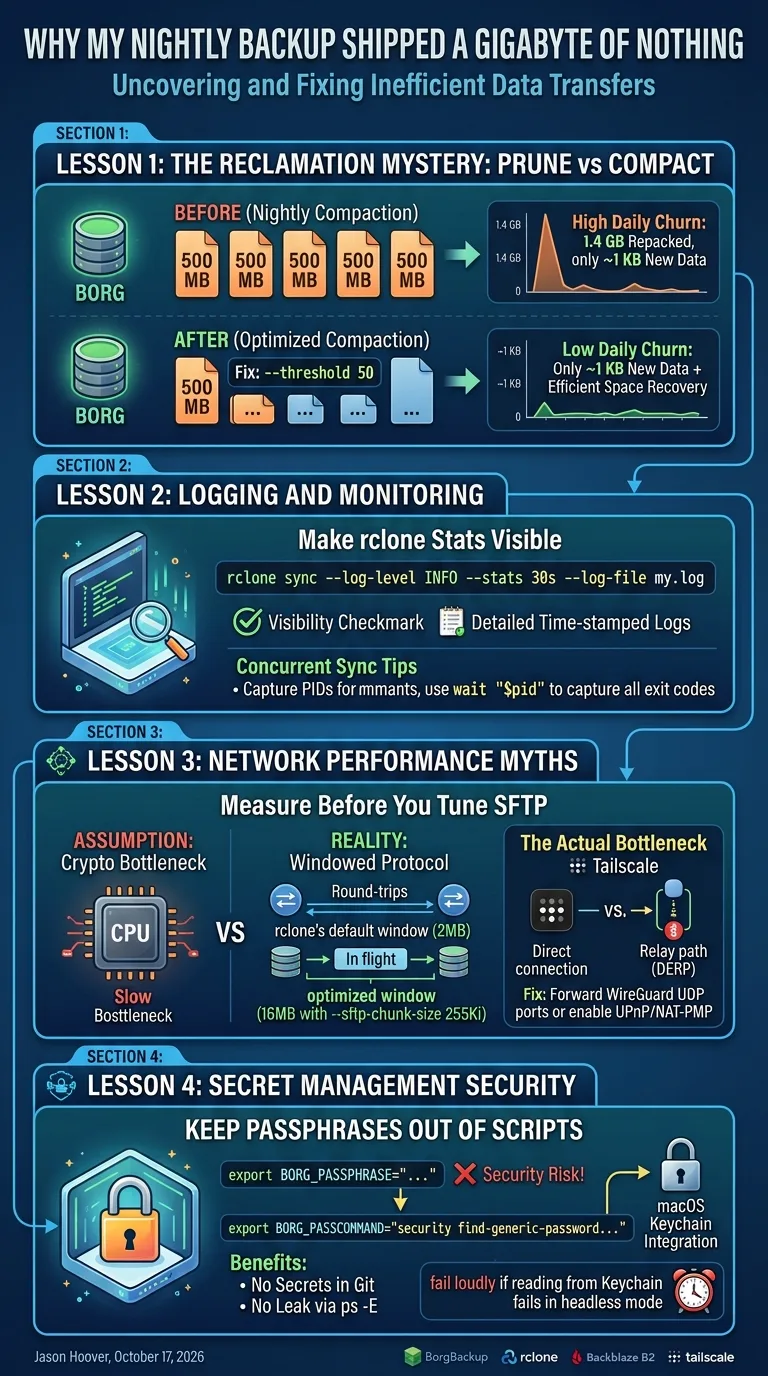
My backup script is unglamorous and has worked for years. BorgBackup archives a handful of dotfiles and some financial records into a local repository, prunes old archives, compacts the repository, and then rclone replicates the whole thing to two places: a Backblaze B2 bucket and a Synology NAS at a relative’s house, reached over a mesh VPN with SFTP.
Then I actually watched it run. Backblaze finished the same workload in under a minute. The Synology took thirteen.
Chasing that gap taught me four things, and only one of them was about the network.
Lesson 0: you cannot attach to a running process’s stdout
Before I could learn anything, I had to see what rclone was doing. It had been
launched by double-clicking a .command file, so its stdout was a terminal —
not a log file.
It turns out there is no good way to tee the stdout of an already running
process on macOS. The tools that can do it need dtrace, which System
Integrity Protection blocks, and reptyr is Linux-only. The output was going
somewhere I could read with my eyes and nowhere else.
What I could do was infer progress from outside the process:
# which files is it reading right now?
lsof -p "$pid" | awk '$9 ~ /borg-home/ && $4 ~ /r$/ {print $9}'

# how many bytes has it sent, and how fast?
nettop -P -L 1 -p "$pid"
That got me a usable picture: roughly 10 MB/s in bursts, against a long-run
average closer to 1.8 MB/s. nettop also showed something I would not have
guessed — about 1.4% of transmitted bytes were retransmissions. Hold that
thought.
The real lesson is preventative. Decide how a long-running transfer will be observed before you start it, because afterwards your options are forensic.
Lesson 1: prune marks, compact reclaims
This was the big one, and it had nothing to do with the network.
A Borg repository is an append-only log. Data lands in segment files, 500 MB each by default, and nothing is ever modified in place. A separate index tracks which chunk lives at which offset in which segment, and how many archives reference it.
That design makes deletion awkward — you cannot punch a hole in the middle of an append-only log — so Borg splits deletion into two phases.
borg prune is the logical phase. It picks which archives to drop, removes
them from the manifest, and decrements the reference count on every chunk they
used. Chunks that fall to zero references are recorded in the hints file as dead
space. What prune does not do is touch a single segment file. The pruned data
is still on disk, byte for byte. The repository does not get smaller.
borg compact is the physical phase, and the only command that reclaims
space. It reads the hints, finds segments carrying dead space, and repacks
them: still-referenced chunks are copied into fresh segment files and the
originals are deleted.
These were one command in Borg 1.0 and 1.1. Borg 1.2 split compaction out so that prune and delete would be fast, and the expensive rewrite could be scheduled on its own.
Where the gigabyte came from
Here is what my repository looked like after a run, sorted by modification time:
21:01          17  data/2/2174      <- tonight's actual new data
21:01         957  data/2/2170
21:01     1310858  index.2174
21:01   364487703  data/2/2161      \
21:01   503856877  data/2/2173       >  repacked by borg compact
21:01   527220178  data/2/2172      /
My genuine new backup data that night was 974 bytes. The 1.39 GB rclone
spent thirteen minutes pushing was three segment files that borg compact had
repacked.
And because my retention rule always finds something to prune, compact always had something to rewrite. Every single night churned about 1.4 GB of segments whose contents had barely changed.
rclone compares size and modification time. A repacked segment is a different size with a new mtime, so it is indistinguishable from a brand-new 500 MB file. Deduplication happened inside Borg, long before rclone saw anything. rclone had no idea the contents were almost entirely data it had uploaded last week.
The fix is a threshold, not a schedule
My first instinct was to run compact weekly instead of nightly. The better tool
turned out to be --threshold, which sets the minimum percentage of dead space
a segment must contain before Borg bothers rewriting it. It defaults to 10.
Think about what that default means with 500 MB segments: Borg will rewrite an entire 500 MB file to recover 50 MB. That is a fine trade when the repository is local. It is a terrible one when every rewrite becomes a 500 MB upload.
# nightly: only repack segments that are at least half dead space
borg compact --verbose --threshold 50 "$repo"

# occasionally: a thorough pass that reclaims nearly everything
borg compact --verbose --threshold 1 "$repo"
Borg’s own documentation is clear about the extremes: --threshold 0 rewrites
the most data, --threshold 1 gets nearly the same result much faster, and
--threshold 100 compacts nothing at all. --verbose prints an estimate of
space freed, so you can see what your threshold is actually buying.
The cost of a high threshold is purely local disk space — pruned data sits on disk until a compaction sweeps it. Worth knowing that it is also a mild privacy consideration: data from a pruned archive remains physically recoverable until something overwrites it.
I ended up making the thorough pass an interactive prompt rather than a date check, so the choice is explicit on the nights it matters.
Lesson 2: rclone’s stats are invisible by default
My script had no logging, so I added --stats. Nothing appeared.
The reason is a two-part default that bites a lot of people:
- rclone’s default log level is NOTICE
--statsoutput is emitted at INFO
So --stats alone is silently discarded. You need both:
rclone sync \
  --log-level INFO \
  --stats 30s \
  --stats-one-line-date \
  --log-file "$log_dir/synology-$(date +%F).log" \
  "$repo" synology:backups/mac-home-borg
--stats-one-line-date is the flag I now reach for by reflex: one timestamped
line per interval instead of a multi-line block, which is far easier to skim or
grep weeks later when you are trying to reconstruct what a slow night looked
like.
A few things I learned writing this part:
Use a separate log file per destination. Two rclone processes appending to one file interleave their stats lines into something unreadable.
--rc is not free. rclone’s remote-control API gives you live stats via
rclone rc core/stats, which is genuinely useful. But it binds a fixed port,
and if that port is taken, rclone does not warn and continue — it dies:
CRITICAL: Failed to start remote control: failed to init server:
listen tcp 127.0.0.1:5572: bind: address already in use
I had briefly written --rc into a shared options variable used by both
destinations. Had I shipped that, the second sync would have aborted and I would
have silently lost one of my two offsite copies. In a backup script, a
convenience feature that can abort the transfer belongs behind an opt-in flag.
If you run syncs concurrently, wait on each PID. A bare wait returns the
status of the last job it reaped, so a failure anywhere else vanishes:
( false & true & wait; echo $? ) # prints 0 — the failure is gone
Capture each PID and wait "$pid" individually if you want to know what
actually happened.
Lesson 3: SFTP is a windowed protocol, so measure before you tune
Now the network. My first assumption was crypto: the NAS runs a low-power Intel Celeron, and SSH encryption is the obvious suspect for slow SFTP.
So I measured it, on the NAS itself:
aes-128-ctr   1730 MB/s
aes-128-gcm    924 MB/s
chacha20       666 MB/s   <- what the session had negotiated
Every option was two orders of magnitude above the 1.8 MB/s I was actually getting. Crypto was not the bottleneck, and switching ciphers would have bought nothing. That measurement took two minutes and saved me an afternoon of tuning the wrong thing.
What is worth tuning is the SFTP window. SFTP is a request/response protocol, and rclone’s defaults leave surprisingly little data in flight per file:
| Setting | Default | Meaning |
|---|---|---|
--sftp-chunk-size | 32 KiB | size of each read/write request |
--sftp-concurrency | 64 | outstanding requests per file |
Multiply them: 2 MB in flight per file. On a 60 ms round trip that caps a single file at roughly 33 MB/s no matter how much bandwidth you have. Raising the chunk size to 255 KiB — the largest OpenSSH accepts — takes the window to about 16 MB:
rclone sync --transfers 8 --sftp-chunk-size 255Ki "$repo" synology:path
Be aware that some SFTP servers reject anything above 32 KiB, so this is a per-remote setting rather than something to put in a global config.
The actual bottleneck
Neither crypto nor windowing explained a 20x gap, and the real cause turned up in the VPN layer. The two machines had never established a direct peer-to-peer connection:
$ tailscale ping nas
pong from nas via DERP(relay) in 60ms
direct connection not established
Both sides’ NAT checks explained why: my side reported
MappingVariesByDestIP: true, meaning symmetric NAT, and neither router had
UPnP or NAT-PMP available for a port mapping. Hole punching had no way to
succeed, so every byte was going through a shared relay.
That also explains the retransmissions from Lesson 0. Tailscale’s relays carry WireGuard inside TCP, so my SFTP stream was running as TCP inside another TCP stream — the classic TCP-over-TCP meltdown, where the inner and outer congestion controllers fight and loss gets amplified. 1.4% retransmits is exactly what that looks like.
No amount of rclone tuning fixes that. The fix is on the router: enable UPnP/NAT-PMP, or forward the WireGuard UDP port statically so one side has a predictable endpoint.
The sequencing lesson is the durable one. I tuned SFTP flags before I checked whether the transport was even sane. Check the path first.
Lesson 4: keep the passphrase out of the script
One more thing, because I noticed it while reading my own script: line 3 was
export BORG_PASSPHRASE="..."
Three problems, in increasing order of how much they bothered me.
First, the script backs itself up, so the passphrase was being archived inside the repository it protects — and replicated to two offsite locations. My repository uses Borg’s repokey mode, where the encryption key is stored in the repository itself, so the passphrase is not one factor among several. It is the entire lock on every copy of the data.
Second, export leaks further than you would think. On macOS, ps -E can show
a process’s environment to the same user, and children inherit it — so both
rclone processes were running with my Borg passphrase in their environment for
no reason at all.
Third, I wanted the script in version control, and a secret in git history is forever.
BORG_PASSCOMMAND and the macOS Keychain
Borg supports BORG_PASSCOMMAND: instead of handing it a passphrase, you hand
it a command that produces one. On macOS the natural source is the login
Keychain.
Create the item once, typing the passphrase rather than passing it as an
argument where it would land in shell history. -w with no value prompts twice:
security add-generic-password -a borg -s borg-home -T '' -w
Then in the script:
borg_pass_cmd="security find-generic-password -a borg -s borg-home -w"
export BORG_PASSCOMMAND="${borg_pass_cmd}"
The -T '' is the interesting part. It creates the item with no pre-trusted
applications, so the first time something reads it, macOS raises an approval
dialog. Click Always Allow and it never asks again.
If you would rather never see a dialog at all, pre-approve at creation time
with -T /usr/bin/security. Both routes end at an identical access control
list; they differ only in whether you perform the approval or assert it up
front.
The caveat worth understanding
macOS cannot remember a decision about your script. Keychain access control
lists name signed executables, and a shell script is not one — so the
application being trusted is /usr/bin/security, the binary your script calls.
Once approved, any process running as you that calls
security find-generic-password on that item reads the passphrase with no
prompt. That is a comparable boundary to a chmod 600 file. The Keychain’s real
advantage is not a tighter grant; it is that the secret is not sitting in the
filesystem where it can be committed to git or swept into a backup archive.
It breaks headlessly, so fail loudly
A Keychain read needs an unlocked login Keychain, and an unapproved item needs a
GUI session to show its dialog. Under a LaunchDaemon, cron, or ssh host ./backup.sh, the read either hangs waiting for a dialog nobody can see or fails
outright.
I verified the hang: reading an unapproved item from a non-interactive shell simply blocks. In a backup script, blocking forever is worse than failing, so the read is bounded when there is no terminal — and deliberately not bounded when there is one, because interactively you want it to wait as long as it takes for you to answer the dialog:
if [ -t 0 ]; then
  ${borg_pass_cmd} >/dev/null 2>&1
  pass_rc=$?
else
  read_passphrase_bounded >/dev/null 2>&1
  pass_rc=$?
fi
For the bounded case I used /usr/bin/perl, which ships with macOS, rather than
coreutils’ timeout, which would make the backup depend on Homebrew. One
wrinkle: letting SIGALRM kill the child makes the shell print a stray
Alarm clock: line into your log, so it is worth having perl exit cleanly
instead:
read_passphrase_bounded() {
  perl -e 'my $p = fork;
           if (!$p) { exec @ARGV; exit 127 }
           $SIG{ALRM} = sub { kill 9, $p; exit 124 };
           alarm 30;
           waitpid $p, 0;
           exit($? >> 8);' ${borg_pass_cmd}
}
Reading the passphrase at the start of the run matters too. The approval
dialog then appears immediately, rather than ambushing you ten minutes into a
borg create.
One thing not to get wrong
If you move a passphrase into the Keychain, keep an independent copy somewhere else — a password manager, or on paper. With repokey mode the key travels with the repository, so the passphrase is all you need to restore. It is also all you have. If the machine dies and the passphrase existed only in its Keychain, every offsite copy is unrecoverable.
Also worth knowing: borg key change-passphrase re-wraps the existing master
key with a new passphrase. It does not re-encrypt your data. Anyone holding
both an old copy of the repository and the old passphrase keeps access to that
copy forever. Rotation protects the live repository going forward; it is not a
remedy for a leak that already happened.
What I would tell myself at the start
- Decide how you will observe a long transfer before you start it. After it is running, your options are forensic.
- Measure the thing you suspect. Two minutes of
openssl speedsaved an afternoon of tuning a cipher that was never the problem. - Check the transport before the application. I tuned SFTP window sizes while every packet was being relayed through a third continent’s worth of extra round trips.
- The best transfer optimization is not transferring. A
--thresholdchange cut a nightly 1.4 GB upload to a few megabytes. No amount of protocol tuning comes close to that.